Interface, Tabs & Activity
Understand the two work areas, reopen past views, and move around efficiently on desktop and mobile.
VibeTrade keeps market context visible while you work. The screen is split into a View Area for charts and analysis and an Action Area for the five main menus.
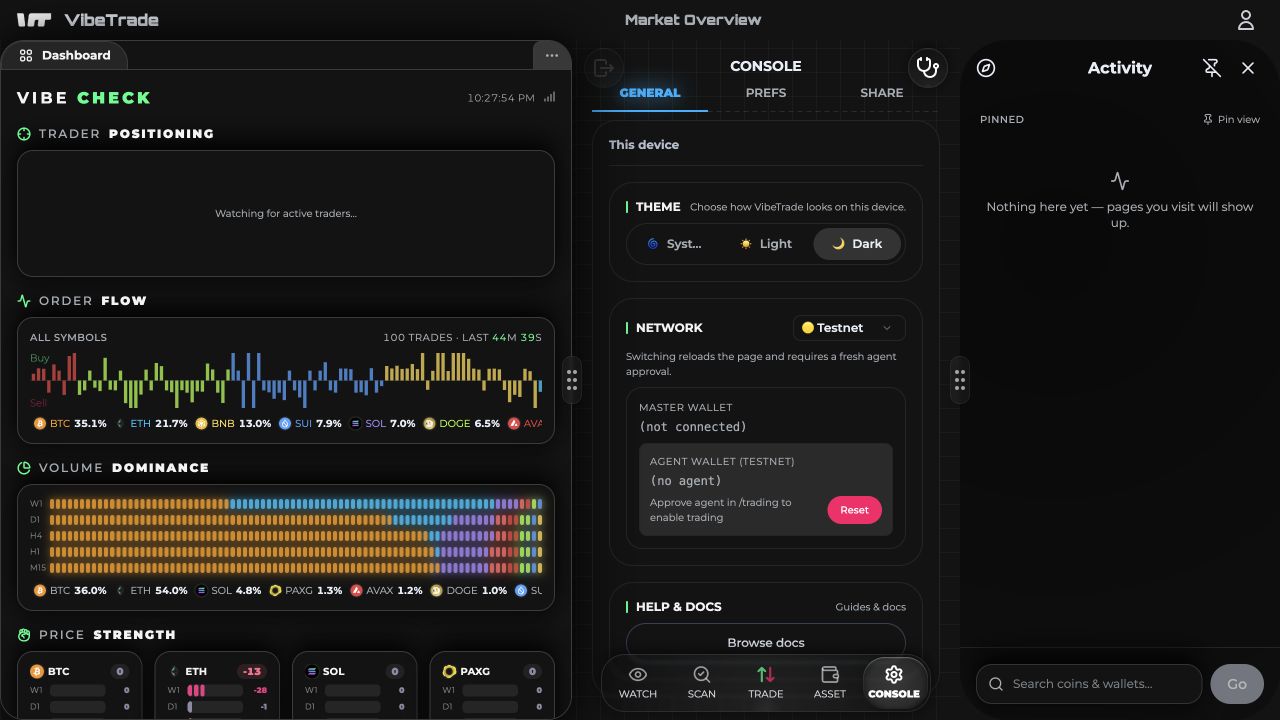
From left to right: the View Area, Action Area, and Activity panel. Drag the handles between them to change the working space.
The two work areas
| Area | What appears there |
|---|---|
| View Area | VIBE CHECK dashboard, charts, Order Flow details, Trader Positioning, trader accounts, and documentation. |
| Action Area | WATCH, SCAN, TRADE, ASSET, and CONSOLE. |
On desktop the areas sit side by side and the divider can be dragged. On mobile they form a vertical split; use the handle to give more room to the area you are reading.
Selecting a menu does not discard the current chart or analysis. For example, you can keep BTC Trader Positioning open above while moving between SCAN and TRADE below.
Main navigation and swipe tabs
The bottom navigation opens the five Action Area menus:
- WATCH — market discovery and bookmarks.
- SCAN — market trades, funding, and active traders.
- TRADE — order entry and order/position management.
- ASSET — balances, positions, and transaction history.
- CONSOLE — network, wallet, preferences, sharing, and docs.
On mobile, swipe horizontally inside a tabbed page to move to the adjacent tab. A vertical gesture continues scrolling the page. Tapping the active navigation item again cycles that page's tabs where supported.
View Area tabs
Each chart, trader, document, and symbol detail opens as a View Area tab. Use Open tabs to see the current set and return to a background view. Closing a tab removes the view, not its underlying bookmark, favorite, or on-chain data.
Order Flow and Trader Positioning symbol details preserve their tab context across an ordinary refresh. Chart layouts are restored separately from browser storage; see Chart & Sharing.
Activity
Activity is a compact workspace history, not a chat assistant.
Recent
Opening a dashboard, chart, trader, document, Order Flow detail, or Trader Positioning view adds it to Recent. Selecting an entry restores its View Area item. It does not change the current Action Area route.
Pinned
Choose Pin view to save the current workspace as a one-tap shortcut. Up to five pins are kept. A pin captures both the current View Area target and its related Action Area route, and restores both when selected.
Search
The search box accepts:
- a market symbol, to open its chart; or
- a complete
0x…wallet address, to open its public trader/account detail.
Activity search does not filter the existing Recent or Pinned lists by wallet substring. Enter a complete 0x… address to open an account; an incomplete address will usually show No matches.
Floating, docked, and minimized Activity
Activity can remain docked in the layout, float above the workspace, or be minimized. Changing its presentation does not clear pins or recent entries. On a narrow screen, minimize it before manipulating dense order controls or chart gestures.
Connection and live status
The top bar contains the wallet/user control and the current market-data status. You can browse public markets, traders, and docs without connecting. A wallet is required for private account state and all signed actions.
When upstream exchange health degrades, the dashboard status changes from healthy to warning or unavailable. A persistent notice appears after repeated failed probes; displayed execution records from Hyperliquid remain the source of truth.
What is stored locally
Pins, recent Activity, watchlists, watched addresses, theme, network choice, chart layouts, and most sharing selections are browser-local. Clearing site data removes those local conveniences but does not change positions, orders, balances, or other on-chain account state.